


BMW CarPlay iDrive 5 & 6: Setup & Guide | Rockford
How to Use CarPlay in BMW with iDrive 5 & 6
Everything you need to know about setting up and using Apple CarPlay in your BMW with iDrive 5 and iDrive 6 systems.
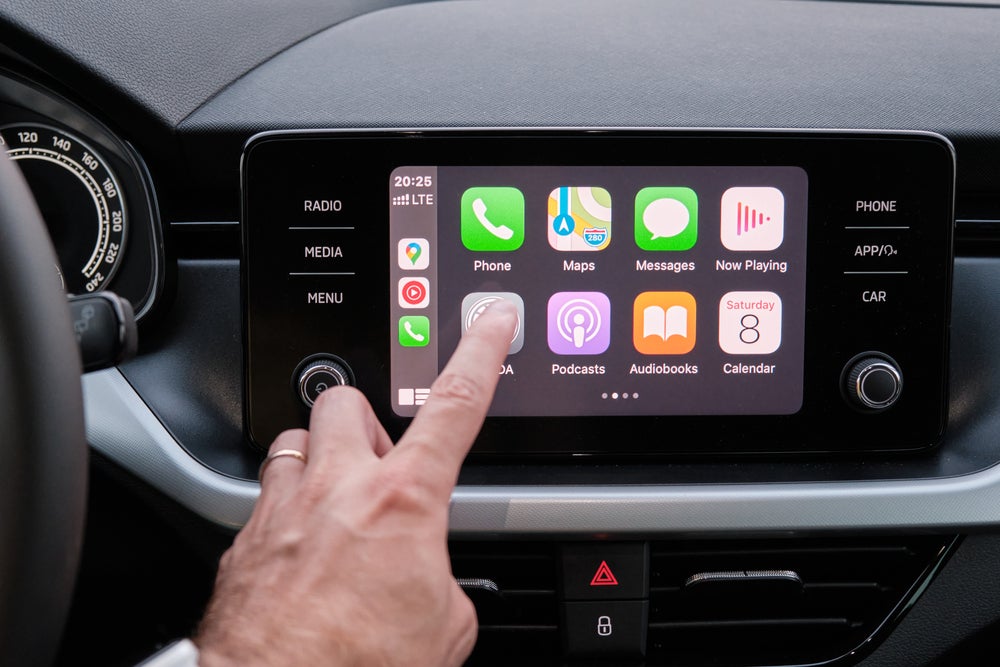
What is Apple CarPlay?
Apple CarPlay is an innovative feature designed to seamlessly integrate your iPhone with your car's infotainment system. It allows you to access essential apps like Phone, Messages, Maps, and Music directly through your BMW's iDrive interface.
Compatible BMW Models and Requirements
To use Apple CarPlay in a BMW, you need the following:
- A BMW equipped with iDrive 5 or iDrive 6
- Apple iPhone 5 or later with iOS 8.3 or newer
- Factory-installed CarPlay compatibility (or post-purchase activation)
Not sure which iDrive system your BMW has? Check your owner's manual or visit your local BMW center for assistance.
Step-by-Step Guide to Setting up Apple CarPlay
Follow these steps to connect and enable Apple CarPlay in your BMW with iDrive 5 or 6:
1. Activate CarPlay in Your BMW
- From the main iDrive menu, go to Settings.
- Select Connections and then click Mobile Devices.
- Press Add New Device.
- Choose Apple CarPlay as the type of connection you want to add.
2. Pair Your iPhone
- On your iPhone, go to Settings > Bluetooth and ensure Bluetooth is turned on.
- Select your BMW from the list of available devices. The name should match the one displayed on your iDrive screen.
- Verify the passkey shown on both your iPhone and iDrive. If they match, tap Pair.
3. Allow CarPlay Permissions
Once paired, your iPhone will prompt you to enable Apple CarPlay. Select Allow to give access to your BMW.
4. Complete the Connection
After allowing the permissions, Apple CarPlay should launch automatically on your vehicle's iDrive screen. You'll see a simplified version of your iPhone's interface, customized for safe, in-car use.
Tips for Using Apple CarPlay in BMW
- Use voice commands via Siri by pressing and holding the voice control button on your steering wheel.
- Organize your apps on your iPhone. The CarPlay interface mirrors how apps are arranged on your phone.
- Keep your iPhone updated to the latest iOS version to ensure compatibility and performance.
Common Issues and Troubleshooting
If you experience issues with Apple CarPlay, try these solutions:
Connection Issues
- Ensure your iPhone's Bluetooth is turned on and paired with your BMW.
- Check if CarPlay is enabled on both your iPhone and BMW (go to Settings > General > CarPlay on your iPhone).
- Restart both your iPhone and your vehicle's iDrive system.
CarPlay Not Showing Up
- Disconnect and reconnect your iPhone.
- Delete your BMW from the Bluetooth devices list and re-pair it.
- Confirm that your BMW has CarPlay enabled. If unsure, contact a BMW service center.
Audio Problems
- Make sure your iPhone is not muted and the volume is turned up.
- Adjust the audio source in the iDrive menu to ensure CarPlay is selected.
FAQs About BMW CarPlay
Can I use CarPlay wirelessly in my BMW?
Yes, BMW supports wireless Apple CarPlay, depending on the model and year. If your BMW has wireless capability, you can connect without a cable after the initial setup.
What apps can I use with CarPlay?
CarPlay supports apps like Maps, Phone, Messages, Spotify, Apple Music, Audible, and more. Third-party apps must comply with Apple's safety guidelines to appear on CarPlay.
Does CarPlay use my iPhone's data plan?
Yes, CarPlay relies on your iPhone's cellular data connection to stream music, use navigation, and download information.
Final Thoughts
Apple CarPlay is a game-changer for staying connected, entertained, and safe while driving. With seamless integration in BMW's iDrive 5 and 6 systems, you can enjoy a smooth driving experience while accessing your favorite apps. If you encounter any challenges, refer back to this guide or visit a BMW service center for further support.